Payment types
How people give, such as cash, check or PayPal, and how each is treated on reports.
Note. This is for Administrators and Managers. If you're in Member care, you won't see it in your menu. See Roles and what they can do.
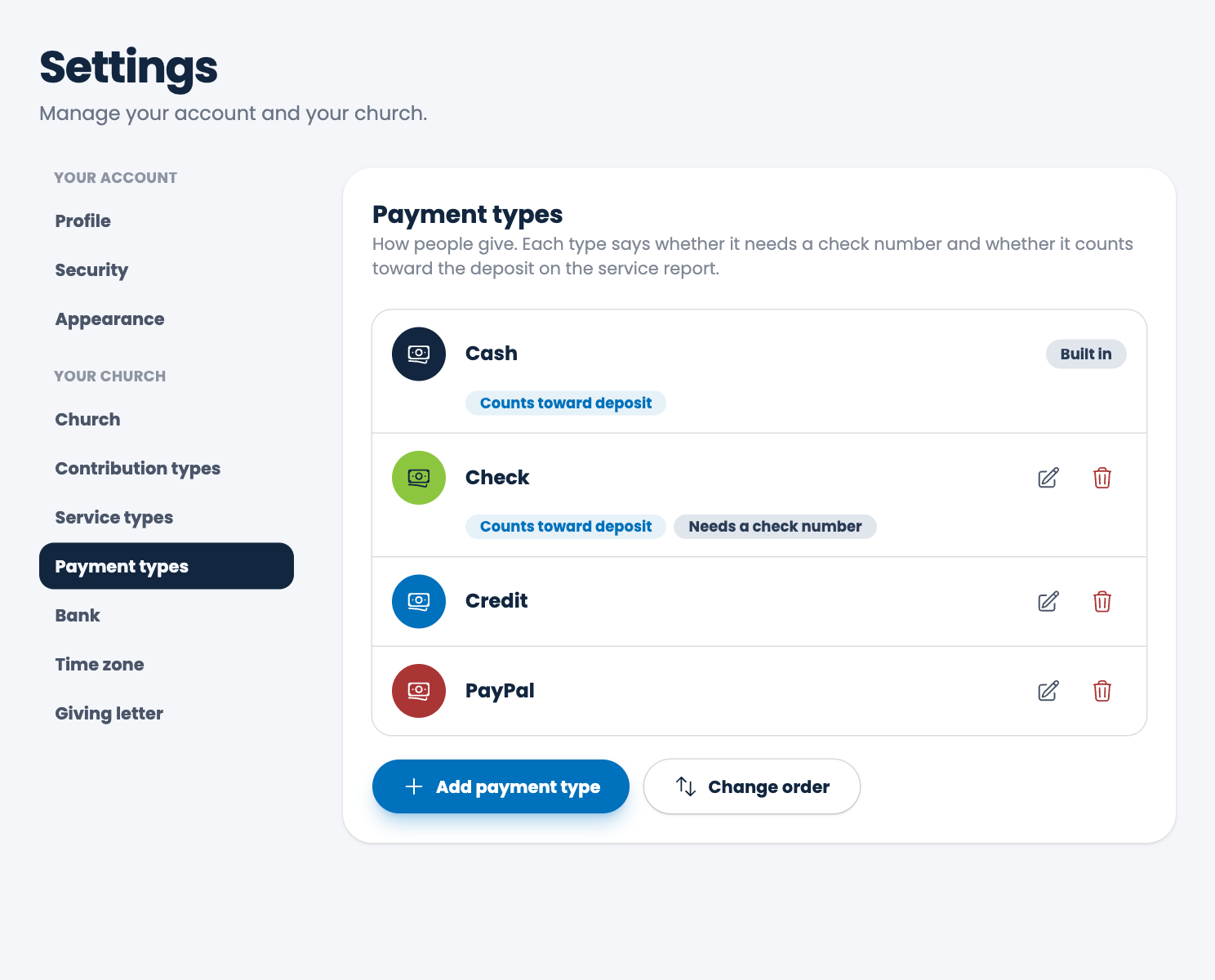
Payment types are the ways people give, such as Cash, Check, Credit or PayPal.
Add one
- Choose Settings, then Payment types.
- Choose Add payment type.
- Type a Name.
- Choose how it behaves:
- Counts toward the deposit on the service report: leave it on for money that goes to the bank in your deposit, such as cash and checks. Turn it off for gifts that go straight to your account, such as online giving.
- Needs a check number: makes the check number required when you record a gift of this type.
- Save.
Put them in your order
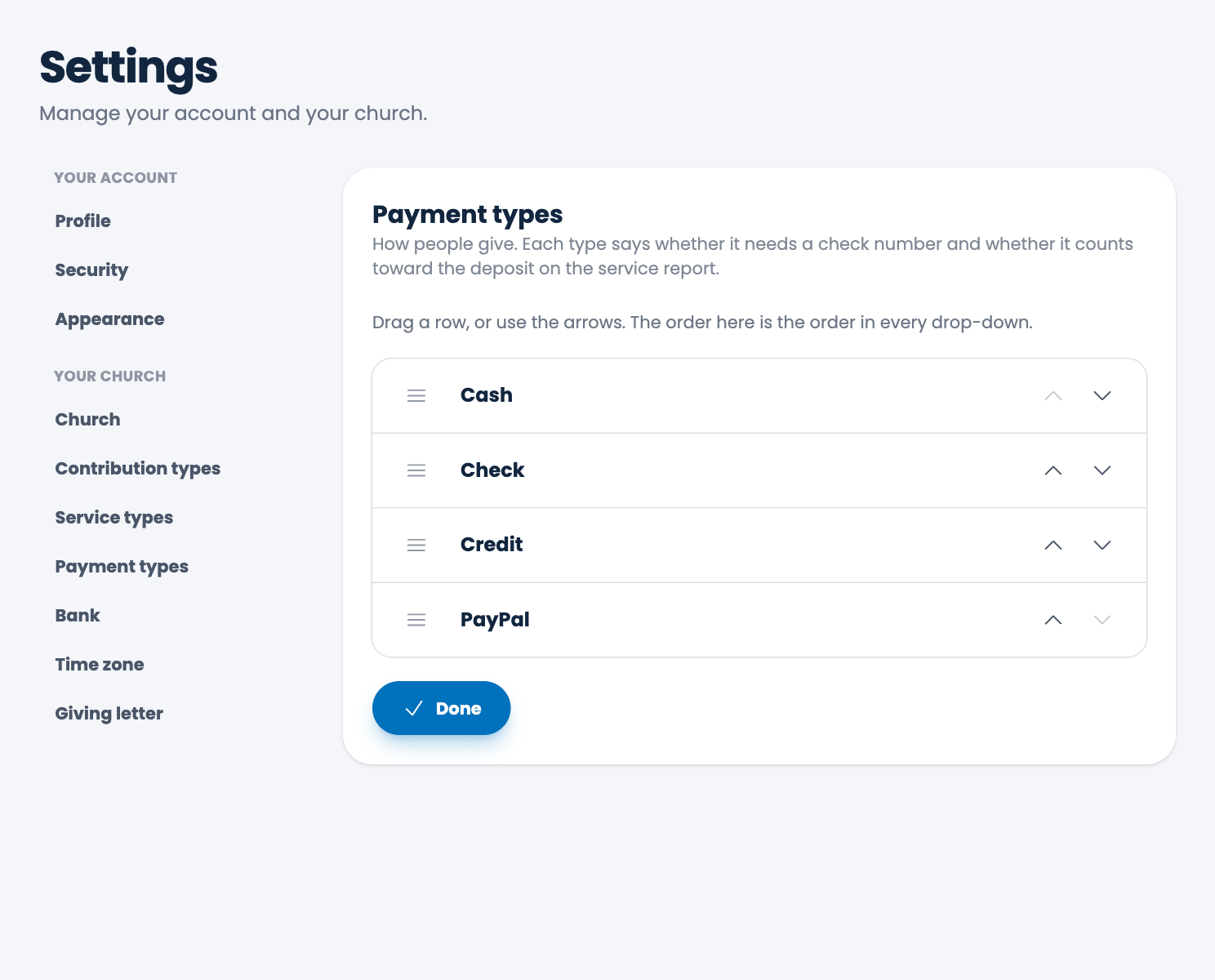
The order of this list is the order in every drop-down and filter, and the order your reports list them in (the groups, subtotals and totals), so put the payment types you use most at the top. Choose Change order, then drag a row where you want it. On a phone, press and hold the row for a moment first, so scrolling still works. If you'd rather not drag, tap the handle (the three lines) on a row for Up and Down buttons; on a larger screen they're always shown. Choose Done when you're finished. A new payment type goes to the bottom until you move it. A new gift opens with the first payment type in the list chosen.
Change or remove one
Choose the pencil to edit, or the trash can to delete. Cash is built in, so it can't be changed or deleted, since every church takes cash. A payment type that gifts already use can't be deleted.
Spotted a mistake, or something that is not clear? Tell us.